As you all probably know Alan Wake PC version is out for 9 days or so. As soon as it was released on Steam the game bumped into the first place. I'm really happy to see that products other than overrated franchises are doing good and small studios can make money in the big fishes' pool. Joyful fact is that Alan Wake Collector's Edition is only 23,99 € / $34.99 on Steam. Another great news comes from the Remedy studio itself. A game developer reveled that they are doing great with the sales:
"I wanted to chime in here. We are very happy with the sales and hitting #1 on Steam at launch was nothing short of amazing. We recouped our development and marketing expenses during the first 48 hours. And yes, we're certainly very excited about PC."
Source: http://forum.alanwake.com/showthread.php?p=141586#post141586
All I can say... good job Remedy, keep it up.
Borderlands 2: 14 minutes of leaked gameplay
Labels:
Games
3
comments
This video was recorded on a closed promotion last year... shame only 500k+ people saw it. But I hope that will be changed soon since the official trailer is out.

Borderlands 2 Launch Trailer
Labels:
Games
0
comments
Borderlands 2 release date has been announced for September 18th in the US and September 21st Internationally! I'm not very exited about this wub wub thing but I enjoyed B1 so I hope this is gonna be a decent sequel with an interesting story.
Facebook's moderating rules leaked
Labels:
Internet
0
comments

As you can read from the title a full detailed censorship manual for moderators leaked last week. Here is the link for the manual, it's not big I recommend reading it even if you don't have facebook a lot of fun staff can be found here.
http://www.scribd.com/doc/81863464/oDeskStandards
Windows 7 Optimization
Labels:
Software
1 comments
Here we are again. A bit more on the system optimization for Windows 7.
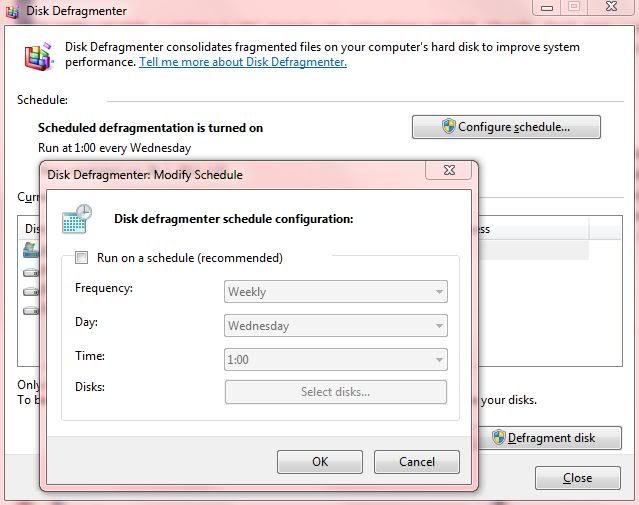
1. Turn off scheduled defragmentation
- Start > type "defrag" > click on "Defragment your hard drive"
- Click on "Schedule"
- In new window decheck "Run on a schedule"
2. Turn off file indexing
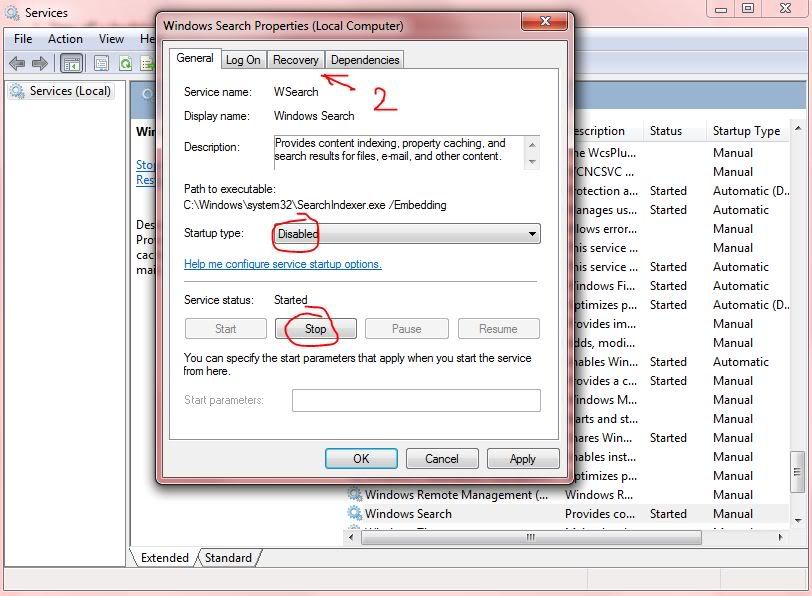
- Start > type "services.msc" > click on "services"
- Find Windows Search > double click it
- General card > set Startup type: Disabled and click Stop
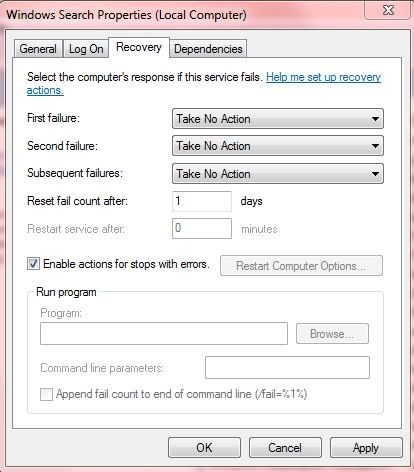
- Recovery card > set "Take No Action" on everything
3. Turn off "Program Compatibility Assistant Service":
- Start > type "services.msc" > click on "services"
- Find "Program Compatibility Assistant Service" > double click it
- General card > set Startup type: Disabled and click Stop
- Recovery card > set "Take No Action" on everything
4. Turn off Windows Defender:
- Start > type "services.msc" > click on "services"
- Find Windows Search > double click it
- General card > set Startup type: Disabled and click Stop
- Recovery card > set "Take No Action" on everything
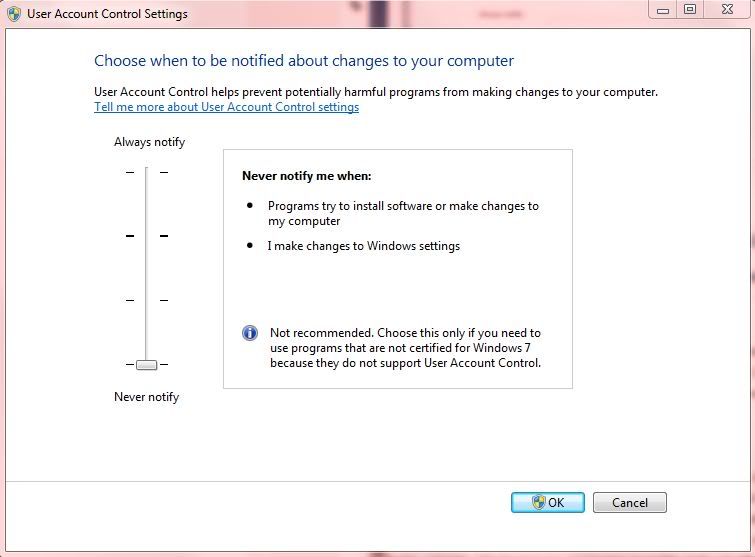
5. Turn off User Account Control:
- Start > type "uac" > click on "Change User Account Control Settings"
- Set slider to Never notify
1. Turn off scheduled defragmentation
- Start > type "defrag" > click on "Defragment your hard drive"
- Click on "Schedule"
- In new window decheck "Run on a schedule"
2. Turn off file indexing
- Start > type "services.msc" > click on "services"
- Find Windows Search > double click it
- General card > set Startup type: Disabled and click Stop
- Recovery card > set "Take No Action" on everything
3. Turn off "Program Compatibility Assistant Service":
- Start > type "services.msc" > click on "services"
- Find "Program Compatibility Assistant Service" > double click it
- General card > set Startup type: Disabled and click Stop
- Recovery card > set "Take No Action" on everything
4. Turn off Windows Defender:
- Start > type "services.msc" > click on "services"
- Find Windows Search > double click it
- General card > set Startup type: Disabled and click Stop
- Recovery card > set "Take No Action" on everything
5. Turn off User Account Control:
- Start > type "uac" > click on "Change User Account Control Settings"
- Set slider to Never notify
Clean Up Your HDD/SDD: Part III
Labels:
Software
0
comments
System Restore
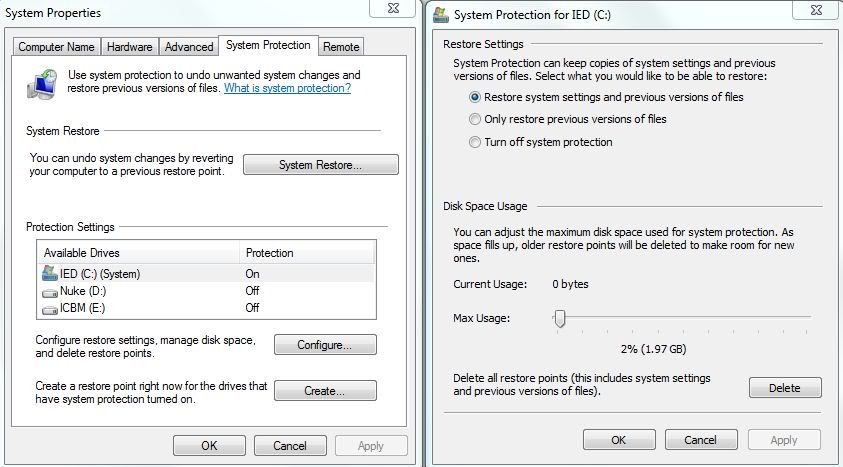
System Restore option is extremely useful tool which saved us numerous times from reinstalling the system. However, it can use a bunch of space. If you don't use it, you can disable it, but if we wouldn't recommend you that. You never know what could happen to your system.
We'll get to it right clicking on the Computer > Properties > System Protection... now you can disable protection for non system drives because System Restore track changes in system files, registry and installed programs which are located on primary drive. Now go to Configure and move the slider to change max disc usage space for System Restore. Slide it max to 5%... everything above it is unnecessary. I put mine at 2% since I don't even use it, I keep it just in case.
 CCleaner (FREE)
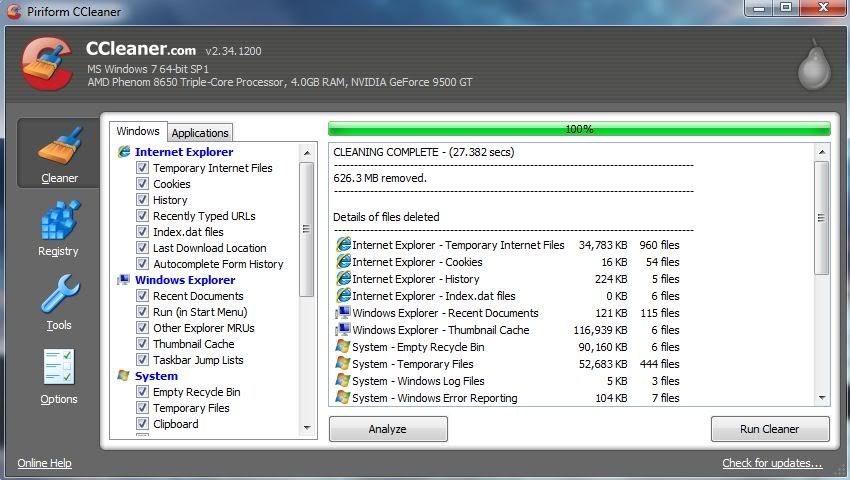
This amazing tool will help you clean all the unnecessary temporary files, cookies, cache, logs, even forgotten recycle bin. I cleaned my Firefox browser's cache then started cleaner... the result was ove 600+ MB... that's almost a whole GB. That's a lot cleaned space for small SDDs.

System Restore option is extremely useful tool which saved us numerous times from reinstalling the system. However, it can use a bunch of space. If you don't use it, you can disable it, but if we wouldn't recommend you that. You never know what could happen to your system.
We'll get to it right clicking on the Computer > Properties > System Protection... now you can disable protection for non system drives because System Restore track changes in system files, registry and installed programs which are located on primary drive. Now go to Configure and move the slider to change max disc usage space for System Restore. Slide it max to 5%... everything above it is unnecessary. I put mine at 2% since I don't even use it, I keep it just in case.
This amazing tool will help you clean all the unnecessary temporary files, cookies, cache, logs, even forgotten recycle bin. I cleaned my Firefox browser's cache then started cleaner... the result was ove 600+ MB... that's almost a whole GB. That's a lot cleaned space for small SDDs.
The other amazing thing is a registry cleaner. It cleans all unused registry entries, an application leftovers after uninstall.
That's it for today. See you soon with new ideas.
Clean Up Your HDD/SDD: Part II
Labels:
Software
0
comments
Big storage eaters: Hibernation and Pagefile
 We used to disable hibernation on older systems. Hibernation is still there on the Windows 7 but if you don't use it why let it use your free space? On my win, hiberfil.sys took around 9 GB... That's a lot of free space. This is screenshot of my C: drive with hibernation and pagefile turned on. When I turned on hibernation again to show you how big it was it took only 3 GB (picture on the left).
- How to disable hibernation?
Go to Start and type in search box cmd (Command Prompt), when cmd icon pops up right click it and Run as Administrator. Now type powercfg -h off. You can switch it back on and off at anytime with "on" and "off" modifiers as shown in the screenshot below.

The second thing we talk about today is a Pagefile. Pagefile is space on your HDD used if your RAM memory starts overflowing. Traditionally there is a rule which states how much your pagefile needs to be depending of size of your RAM memory and it's 1.5 times RAM. That rule was introduced back when we had around 1 GB of memory. But today with 8-12 GB of system memory there is no need for so big pagefile... imagine 8 GB * 1.5... that's 12 GB of your HDD. Or 12 GB * 1.5 = 18 GB... sick. Pagefile size depends on your needs and your knowledge. With 12 GB your pagefile should be around 4-6 GB.
- How to change pagefile size?
Right click on Computer, select Properties. Pick Advanced System Settings
Then click on Advanced card and under Performance click Settings. Or just follow the screenshot below.
Click on another Advanced card then Change. In new window deselect "Automatically menage paging file size fol all drives" and pick what suits you the best.
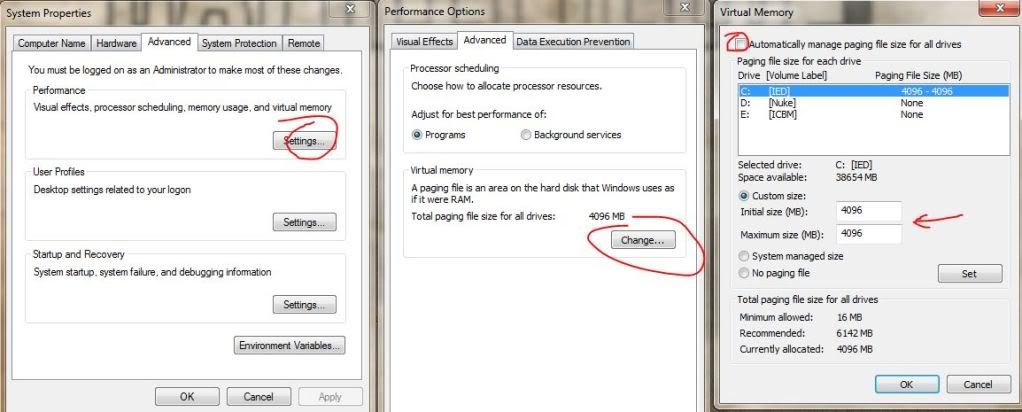
I put mine at 4 GB. Imagine how much is this essential for your small SDD.
In part III we talk about System Restore and free cleaning tools.
- How to disable hibernation?
Go to Start and type in search box cmd (Command Prompt), when cmd icon pops up right click it and Run as Administrator. Now type powercfg -h off. You can switch it back on and off at anytime with "on" and "off" modifiers as shown in the screenshot below.
- How to change pagefile size?
Right click on Computer, select Properties. Pick Advanced System Settings
Then click on Advanced card and under Performance click Settings. Or just follow the screenshot below.
Click on another Advanced card then Change. In new window deselect "Automatically menage paging file size fol all drives" and pick what suits you the best.
I put mine at 4 GB. Imagine how much is this essential for your small SDD.
In part III we talk about System Restore and free cleaning tools.
Clean Up Your HDD/SDD: Part I
Labels:
Software
2
comments
There are a lot of reasons for which you'll need a control over your disk space. Nowadays the whole situation over disk usage is transparent but there are still some applications and programs which can take plenty of your free space without your knowledge. Let's start with our 1st tool.
WinDirStat - Disk usage statistics viewer (FREE)
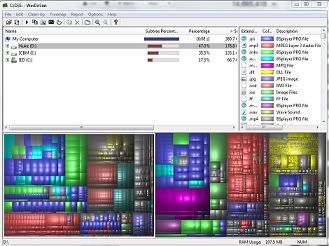 WinDirStat installation is quite small only about 631 KB. You can download it from http://windirstat.info. This program is free open source diagnostic tool and it's published under GNU Public License. When you start it, it reads all your drives at once and present it as a directory list with percentage stats and a treemap.
A treemap is a bread and butter of this tool. Each file is shown as a colored rectangle. Directories and subdirectories are again making rectangles and of course each drive make's up a rectangle. The colors are representing the extension type of the file. In the next post we will show you that invisible storage eaters and how to disable them for good.
WinDirStat - Disk usage statistics viewer (FREE)
WinDirStat installation is quite small only about 631 KB. You can download it from http://windirstat.info. This program is free open source diagnostic tool and it's published under GNU Public License. When you start it, it reads all your drives at once and present it as a directory list with percentage stats and a treemap.A treemap is a bread and butter of this tool. Each file is shown as a colored rectangle. Directories and subdirectories are again making rectangles and of course each drive make's up a rectangle. The colors are representing the extension type of the file. In the next post we will show you that invisible storage eaters and how to disable them for good.
Subscribe to:
Comments (Atom)